Having trouble entering or submitting time? This guide helps employees and managers quickly diagnose and fix issues in Day View, Week View, and Timesheet View — including special cases like lock-only organizations, monthly/semimonthly models, abandoned stopwatches, funding/program visibility, and Resource Management.
Summary: Most problems come from five places: approver assignment, completion rules, required fields (notes / Start & End Times), locks/approval status, and visibility (Programs/Projects/Tasks/Allocations). Start with the Quick Checks, then jump to the symptom below. Edge cases are collected under Edge cases & oddities. For a visual, step-by-step on “Please fix fields in red,” see Fix fields in red — detailed examples.
Quick Navigation
- Quick Checks (60 seconds)
- Submission errors
- Entry & edit errors
- Missing items & visibility
- Allocations / Targets (Resource Management)
- Stopwatch issues
- Time Off dependencies
- Browser / session issues
- Employee Start/End Dates (time entry limits)
- “Please fix fields in red” — detailed examples
- Edge cases & oddities
- When to escalate
- Related articles
Quick Checks (60 seconds)
-
Read the banner or tooltip: Error banners and lock tooltips usually state the exact blocker.
-
Approver assigned? Without a Default Approver you can’t submit.
-
Completion rules met? If your org requires 8h/day (or similar), fill missing time first. Settings are admin-controlled.
-
Lock status: Submitted or Approved / Locked periods are read-only until Undo Submission / Undo Approval / Reject.
-
One stopwatch at a time: Stop any running stopwatch before switching tasks or toggling view options.
Submission errors
“Submit button is disabled” or “Cannot submit this timesheet”
- Cause: No Default Approver assigned.
- Fix: Ask a ClickTime Admin/Manager to assign your Timesheet Approver. See Assigning Timesheet Approvers.
-
Cause: Incomplete Time rules not met (e.g., 8 hours/day).
- Fix: Add time to meet the rule. Employees cannot change this; only admins can adjust the requirement.
- Cause (some models): Your model requires submitting from Timesheet View (not Week View).
-
Fix: Open Timesheet View and submit from there.
“This timesheet cannot be submitted because you are not configured to submit timesheets for approval.”
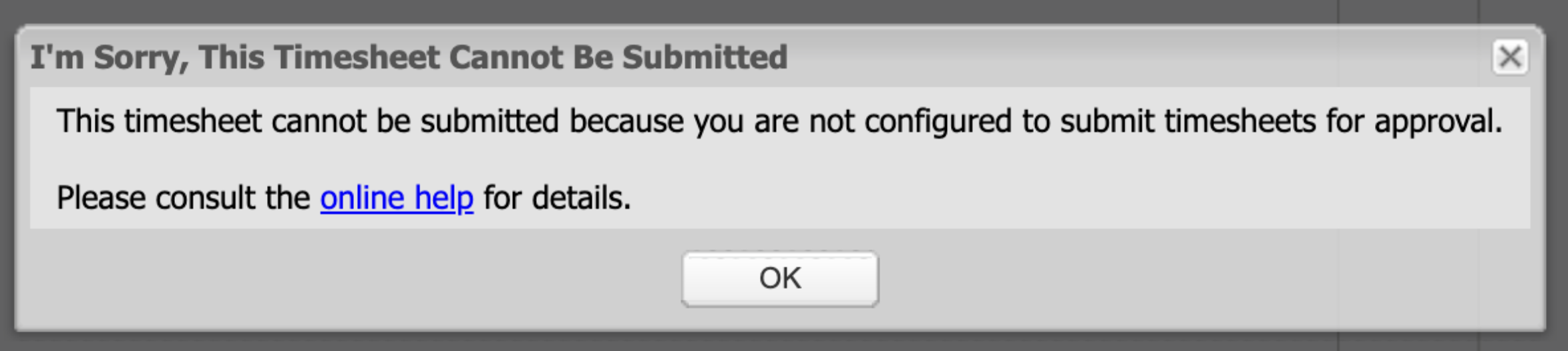
- Cause: Employee has no Default Approver assigned.
-
Fix (admin): Go to Company → People → (edit person), in Timesheet Settings & Approvals assign a Timesheet Approver. Verify the approver name appears on the user’s Timesheet View.
“Could not submit this timesheet because its status has changed since you loaded it.”
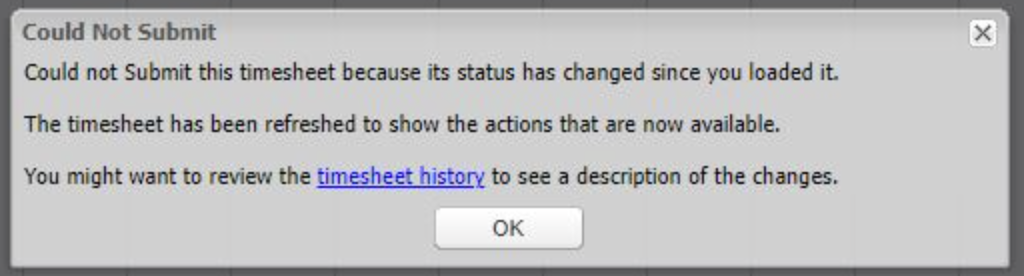
- Cause: The status changed in the background (another tab/user unlocked/approved/rejected) or a stale completion flag remained after settings changes.
- Fix: Refresh and submit again. If it persists, click Undo Submission and re-submit. Check model/rule mismatch if your org uses monthly/semimonthly with weekly rules.
Admin note (model mismatch): If your account uses a monthly or semimonthly model, per-person weekly completion rules + “Incomplete timesheets cannot be submitted” can cause submit failures or the “status has changed” error. See Monthly/Semimonthly + Weekly rule conflict for the exact fix.
Entry & edit errors
Lock icon on rows (can’t edit)
- Cause: Period is Submitted, Approved / Locked, or Locked without Approvals.
-
Fix (employee): Unsubmit (Week View) or Undo Submission (Timesheet View).
Fix (approver): Undo Approval or Reject to make it editable.
Alt (admin): Override Timesheets (if permitted).
“Submitted without Start/End — hide Start & End to continue”
- Cause: The period/row was submitted without Start & End Times; turning them on later blocks edits.
- Fix: User opens Options → Show Start & End Times and turns it off; then edit. If submitted/approved, Undo Submission / Undo Approval first.
“End time must be after start time” / overlaps
- Cause: Start/End reversed, shift crosses midnight without date adjustment, or two entries overlap.
- Fix: Correct times or adjust the date; ensure entries don’t overlap.
“Unexpected Error… preventing your time entries from being saved.”
- Cause: Temporary save failure or session/network desync; sometimes editing holidays/locked rows without rejecting first.
- Fix (fast): Copy notes, refresh, and save again; try another browser. If editing preset holidays, reject the timesheet first, edit via Override, then resubmit/approve.
Week View shows duplicate/triplicate or unexpected rows
- Likely causes: Auto Fill (pre-fills last 7 days) or Quick Week (copied prior week); notes can carry via Quick Day.
- Fix: Delete unwanted rows (trash can), turn off Auto Fill in Options, and avoid accidental Quick Week. If rows are locked, Undo Submission/Undo Approval first.
“Please fix fields in red” (quick guidance)
- Cause: Stale validation, hidden required field (e.g., Notes), or an error on a different row/day.
- Fix: Refresh; in Options → Columns show required fields (e.g., Notes); scan all days for red markers; save again. For the full visual guide, see detailed examples.
Project Approvals enabled? Rows tied to project-level approval may resist direct edits. Use Reject to unlock, then edit and resubmit.
Missing items & visibility
“Cannot enter time because no programs are available to them… Toggle ‘Display hidden…’ to see more.”
- Cause: The selected Client has no active Projects. Even if the person has a project on their profile, the Client itself must have at least one active Project to allow selection in time entry.
- Fix (admin): Go to Company → Projects and activate a Project under that Client (or add a new Project). Then retry time entry.
Project/Client/Task not appearing in selectors
- Start/End Date window: Future Start Dates or past End Dates hide items from time entry. Fix: Adjust the date window (or remove End Date) so today is within range.
- Assigned visibility: Item may not be visible to your person/division. Fix (admin): Assign/reactivate and ensure it’s visible in selectors.
-
Date format mismatch: With DD/MM/YYYY org format, dates like
04/10/2025are read as Oct 4 (future). Fix: Correct the item Start Date; optionally align company date format to local convention.
Only I can’t see a project (others can)
- Cause: Your person/division isn’t assigned to the item, or your item has a past End Date.
- Fix: Ask your admin to confirm your assignment and extend/remove the End Date for you.
Allocations / Targets (Resource Management)
For accounts using funding/source allocations and monthly targets in Week View.
- User eligibility: The user’s Person Details must have Allocate time to funding sources enabled.
- Month crossover: Allocations/targets are monthly. For a week like 8/31–9/6, switch the month toggle to September and add the first September entry to activate targets.
- Scope: Ensure the person/division is assigned to the relevant funding sources/projects for that month.
Resource Management shows an inactive Client/Duplicate with a September budget
- Cause: A future budget value remains on the RM grid, so it still displays even if the client/duplicate is made inactive or has an End Date.
- Fix (admin): Temporarily remove the End Date/inactive flag, open the RM grid and clear present/future Budget cells for that item. Reapply the End Date/inactive status.
Stopwatch issues
- Can’t start a new stopwatch: Only one stopwatch can run at a time. Fix: Stop the active stopwatch from the banner or Day View.
- Can’t toggle options while running: Some view options (Show Stopwatch / Show Start & End Times) are disabled during an active stopwatch. Fix: Stop it, then toggle.
- Abandoned stopwatch blocks approval/submit: Fix (admin): From Company → Timesheets → Timesheet Review, click the date to open Override; look for the red stopwatch icon, hover to edit, then delete or correct the entry. To clean up many, use Bulk Delete Abandoned Stopwatch Entries (Company → Preferences → Advanced).
Time Off dependencies
- Waiting for Time Off Approval: Timesheets can’t finalize until pending Time Off is approved/rejected. Fix (manager): Approve/reject the request, then approve the timesheet.
- PTO canceled but still on timesheet: Canceling a request restores the balance but doesn’t remove existing time rows. Fix: Delete the PTO rows from the timesheet; the balance is already restored.
Browser / session issues
- “Unexpected Error… please refresh” only in my browser: Clear cache/site data for ClickTime and retry; incognito or another browser can confirm. If the page still errors, capture a screenshot + timestamp and contact Support.
- Sign-in loop opening Personal → Week View (Chrome): Update Chrome to the latest version (e.g., 129.x), then retry. If it persists, clear site cookies for the ClickTime domain or try another browser and contact Support with a HAR file.
Employee Start/End Dates (time entry limits)
Each Person Details page has two optional fields you can use to track the employee's Start and End Dates.
These fields can be helpful in tracking when an employee joined (and left) your organization. ClickTime also prevents anyone from entering time for days that are outside of their Start/End Dates. Staff may see the following message when attempting to log hours for a day that is before or after their Start/End Date:
Employees and Supervisors may see this message if they use the Timesheet View page to navigate to a day outside of the employee's Start or End Date
In situations where these dates were added after an employee started tracking time, you may see existing timesheets for someone that are outside of these dates. These can appear when using the Timesheet Review function, or running a Horizontal Timesheet report. Employees may also try using the Timesheet View page to load a timesheet that is outside of their Start/End Dates.
If you need to access the timesheet for someone that is outside of their Start/End Dates, you will likely get an error message. The only way to resolve this is to go to that employee's Person Details page and edit (or remove) the date from either the Start/End Date fields.
Once you Update this information, the employee should then be able to log hours, and Administrators or Managers should be able to view timesheets from the Timesheet Review page or using a Horizontal Timesheet report.
“Please fix fields in red” — detailed examples
When completing a timesheet, occasionally users may see an error that says “please fix fields in red below”. This error can be caused by multiple factors and this article will help focus on some of the more common causes.
In most cases, the problematic time entries will be flagged in red:
However, there may be situations where the appropriate fields are not in red. This help section will cover both scenarios.
Time Entries are in Red
Time Entries are NOT in Red
A good first step is to hover over the time entries, because this can reveal more information about the issue:
Notes Required: If your administrator has set this for your account and Notes are omitted, this is how the error appears on the Day View page:
This is how the same error appears on the Week View page:
Omitting Required Entry Fields: If Client, Project or Task fields are left blank, the error appears this way:
Daily Hours Entry Limit Exceeded: If a user enters more than 24 hours of time on one day (from the Week View page), the error looks like this:
Overlapping Start/End Times: If there's a conflict in the way time is entered chronologically, you'll see the error this way:
Time Entry Restrictions: if a user does not have access to a particular Client, Project or Task as configured by their administrator AND the organization has certain menus hidden on timesheets, the user may see an error like this when saving a time entry (if they hover over the Client or Project menus):
In the above example, the organization has chosen to hide their Tasks menu and when this happens, the system looks to a 'Default' Task to pre-populate the hidden Tasks menu for the user. But because the Task associated with this Client/Project was different from the Default Task in this case, the timesheet throws this error. Fix: request access to the needed Tasks from your administrator.
Project Start or End Dates: if these are configured on the Project detail page (here), in some cases they can interfere with time entry. After clicking 'Save' you may notice the 'Project' field highlighted in red along with the "please fix fields" error:
The suggested fix is to remove the Start or End Date on the Project detail page. If you need to keep a record of these dates, you can copy/paste them into the "Notes" field on the Project detail page here:
In some cases, you may see the error "please fix fields in red below", but there are not actually any time entries hi-lighted in red. For these situations, try:
- Take a screenshot of your time entries, then refresh the page. You may also log out and back in (after screenshotting) and try again.
- Find the time entry that isn't saving and try to edit/save it again.
- Open a new ‘Incognito’ window in Chrome, or 'New Private Window' in Firefox/Safari. Once open, go to https://login.clicktime.com, sign in, and try to re-create and save the time entry.
- If the error persists, contact support@clicktime.com with your screenshots and the timestamp; we’ll troubleshoot further.
Edge cases & oddities
Lock-only organizations (no Approvals)
Admins lock periods without using the Approvals module.
- Symptom: Admin can’t lock due to a lingering “incomplete” error on a specific person.
- Fix (admin, per person): In Person Details, temporarily uncheck the incomplete-time rule, save; then re-enable the rule and save again. Reload the timesheet and lock. (Clears a stale flag.)
Monthly/Semimonthly + Weekly rule conflict
- Symptom: Users on a monthly or semimonthly model see submit errors (including “status has changed…”) when a per-person weekly requirement + “Incomplete timesheets cannot be submitted” is set.
-
Fix (admin, per affected user):
- In Person Details → Incomplete Time, uncheck “Incomplete timesheets cannot be submitted”.
- If the box is locked, temporarily switch the basis to Per Day to enable unchecking, save.
- Re-set the “Timesheet is incomplete if less than…” value as desired (use Per Day for monthly/semimonthly models). Do not re-enable a weekly submission block for monthly/semimonthly.
Apply to all users who previously had a weekly rule.
Approval “loop”: Project time set to require approval after submission
- Message: “Could Not Approve — This timesheet contains project time that was recently set to require approval. Please reject and re-submit the timesheet to send this timesheet back to Project approvals.”
- Cause: Project/hour details or project approver changed mid-flow (after submission).
- Fix (approver): Reject the timesheet so it re-enters Project Approvals. Approve at the Client/Project Approvals tab, then approve the timesheet. If a particular screen throws an error, reject from Company → Timesheets first, then follow the flow.
Manager/approver visibility (why another manager can see a timesheet)
- Cause: Managers granted approval scope for a Division can see/approve anyone in that Division (intended behavior).
- Fix: Adjust Division scope or use Project Approvals if you need a PM first, then a final approver.
- Note: Managers shouldn’t approve their own timesheets. Ensure their Default Approver is another person.
Why could the user submit with an abandoned stopwatch?
- Context: In rare cases, an abandoned stopwatch wasn’t surfaced to the user early enough.
- What to do now: Clear the abandoned stopwatch (see Stopwatch issues). If you see this again, share timestamp + screenshots with Support so we can review History/Audit and improve messaging.
When to escalate
If you’ve checked approver assignment, completion rules, locks/approval status, visibility/date windows, per-user options, and stopwatch state — but still can’t proceed — please capture:
- Who & when: employee name, period dates, exact timestamp of the issue
- What: full-page screenshot including any banner or tooltip
- Where: Day/Week/Timesheet View, browser & OS (or mobile app version)
- History/Audit: a screenshot of the latest entries around that time (if available)
Send this to your ClickTime Admin or Support so we can correlate with logs and resolve quickly.
Comments
0 comments
Please sign in to leave a comment.