This guide explains who gets notified (and how) for timesheet activity, and when items appear in the Approval Inbox on Company → Dashboard. It also covers legacy dashboard behavior, automated notifications, and using Send Email from Timesheet Review. For other approval types, see the Approval Inbox overview (Expenses, Time Off, Project Approvals).
Jump to
Key concepts
-
Default Approver: Approver assigned on the Person record. Receives the submission email and approves the timesheet.
- Permissioned Manager: Manager with permissions and division scope who can review/approve from Company → Timesheets. Notified only if they are the Default Approver for the employee.
-
Approval Inbox: Dashboard workspace showing items currently awaiting your approval, based on your role and permissions.
-
Timesheet Review: Admins and Managers can approve, reject, and send reminder emails. This is separate from the Approval Inbox cards.
Notifications by event (Timesheets)
Submission
- Email: Sent to the Default Approver.
-
Optional CC: Employee can add recipients during submission.
- Approval Inbox: A card appears for the Default Approver.
- Scoped Managers do not receive a submission email and do not get an Inbox card unless they are the Default Approver.
Approval
-
Email: Employee can opt in at submission to receive an approval confirmation.
- Approver email: Not sent for their own action.
- Approval Inbox: The card is removed for the approver when approved.
Rejection
-
Email: Employee is always emailed and sees the required rejection comment.
- Approval Inbox: The card is removed for the approver when rejected.
- Next step: Employee updates entries and resubmits to the Default Approver.
Approval Inbox visibility
-
Admins: In the Approval Inbox, Admins see items where they are an assigned approver. To review organization-wide activity, use Company → Timesheets with filters and scope controls.
-
Managers: See items only for approval types they are permitted to approve and only for people within their division scope.
- No eligible widgets: If a Manager has no permissions for any approval type, the Approval Inbox does not display for them.
Legacy vs. new dashboard
The new Approval Inbox centralizes items awaiting your review and shows timesheets, expenses, time off, and project approvals in one place.
- New dashboard (Approval Inbox): You will see a card for submitted timesheets when you are the Default Approver. Bulk approve or reject is supported.
- Legacy dashboard elements: Older widgets may show status counts or shortcuts. These do not change who is notified and do not replace the Inbox card behavior. Selecting the Review link from the legacy dashboard routes you to the new Dashboard and Approval Inbox for approval.
Tip: When in doubt, use the Approval Inbox to work your queue and Company → Timesheets for deeper review, filters, and Send Email.
Automated notifications
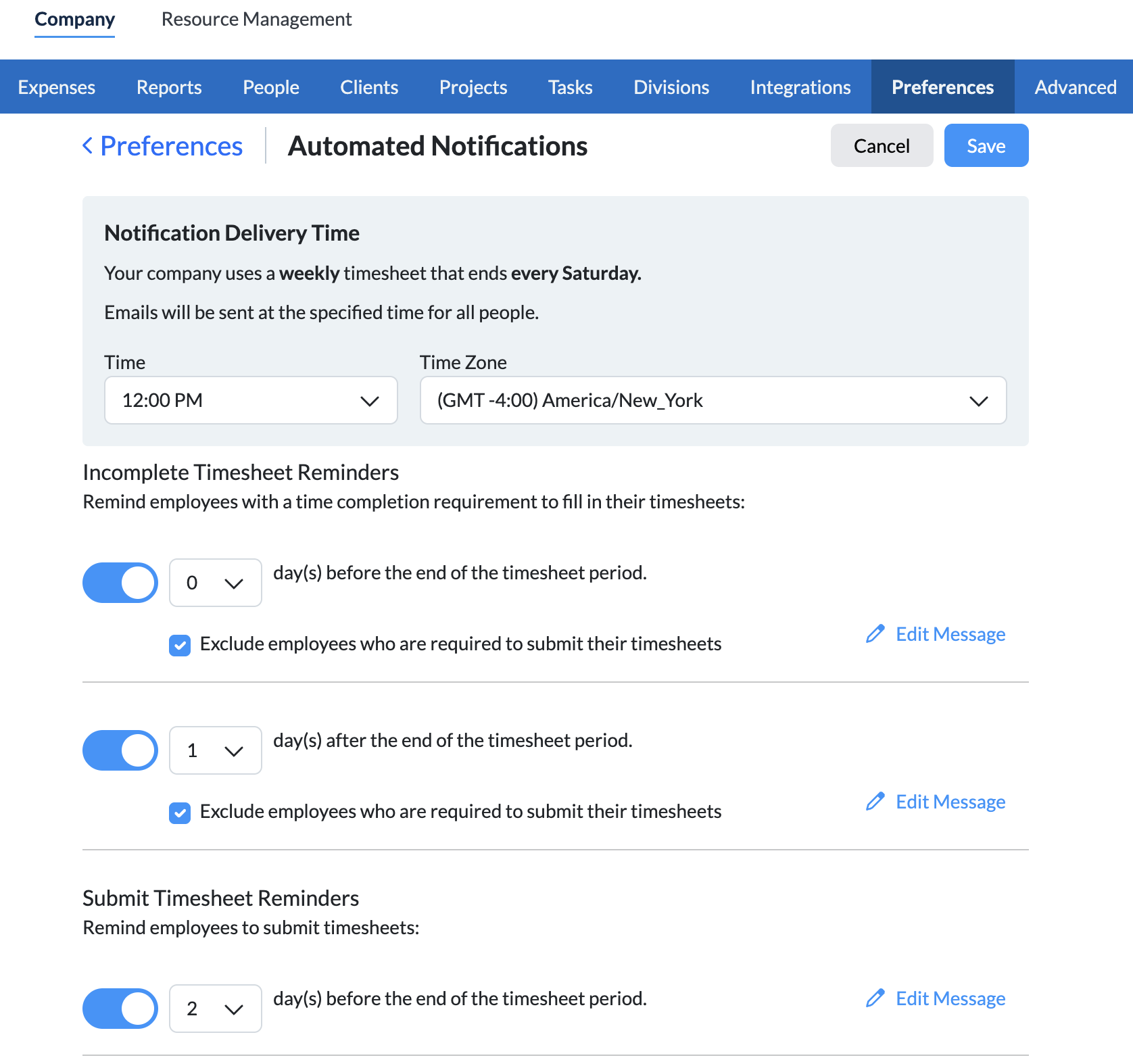
Organizations can enable automated reminders for time entry and submission. These are separate from approval emails and are configured by Admins. To learn more, see Automated Notifications.
- Examples: daily completion reminders, period-end “timesheet due” reminders, “not submitted” follow-ups.
- Scope: Automated reminders target employees based on rules and schedules that your Admin configures.
- Effect on status: These emails prompt action but do not approve or reject a timesheet.
Where to configure: Company → Preferences → Notifications
Send Email from Timesheet Review
From Company → Timesheets, approvers can select people or periods and use Send Email to send one-off reminders or policy notes.
- Use cases: late or incomplete entries, instructions before payroll, policy reminders.
- Status: Sending an email does not change the timesheet’s status.
Special cases
-
Coverage / non-default approvers: Managers with scope can approve in Timesheet Review. They do not receive a submission email or an Approval Inbox card unless set as the Default Approver. In Timesheet View they may see a message that they are approving on behalf of the Default Approver.
-
Time Off holds timesheets: Pending Time Off places a timesheet in Waiting for Time Off Approval. Resolve the Time Off request first, then the timesheet routes to the Default Approver.
-
Project Approvals in a timesheet: If entries require project review, the Project Approver receives an email and an Inbox card. After project entries are approved, the timesheet routes to the Default Approver.
- Mobile: Timesheet approvals exist in mobile. Project Approvals should be reviewed on web.
Troubleshooting
- No submission email: Confirm the recipient is the employee’s Default Approver. Check spam and mail rules. Verify the approver on the Person record.
- Manager cannot see the Approval Inbox: Verify Manager permissions, division scope, and that they are assigned as an approver for at least one approval type.
- “Waiting for Time Off Approval”: Approve or reject the pending Time Off request. The timesheet will then route to the Default Approver.
- Need to notify multiple people: Employees can add CCs during submission. Approvers can also use Send Email for ad-hoc messages.
Summary
Submission emails go to the Default Approver and create an Approval Inbox card for that approver. Employees can opt in to receive an email when their timesheet is approved, and they always receive an email if it is rejected. Automated reminders help drive completion and submission but do not change status. Use the Approval Inbox to work pending items and Timesheet Review for detailed review and targeted emails.
Comments
0 comments
Article is closed for comments.